
Guide for swapmod Kit edition
Before you start: if you experience issues while assembling, installing or operating swapmod, please consider joining our swapmod discord server as this is the fastest way to get help from our support moderators or community members. Just click on the button below to get your invitation. This is also the only channel where you can be notifed about most recent part updates and anouncements.

Step 1: Download and print
Download the files linked below and open in Bambu Studio or Orca Slicer. Please note, that all parts should be printed with 0.4mm nozzle!
Please note that the links below contain only public parts. To build a SwapMod, you will also need to purchase a swapmod A1M kit, which includes all the necessary hardware and non-public printed parts.
IF UPDATE ONLY: If you already using swapmod and want just update to new version, you will only need to print Plate 1 and 2 (light grey parts on the picture below).
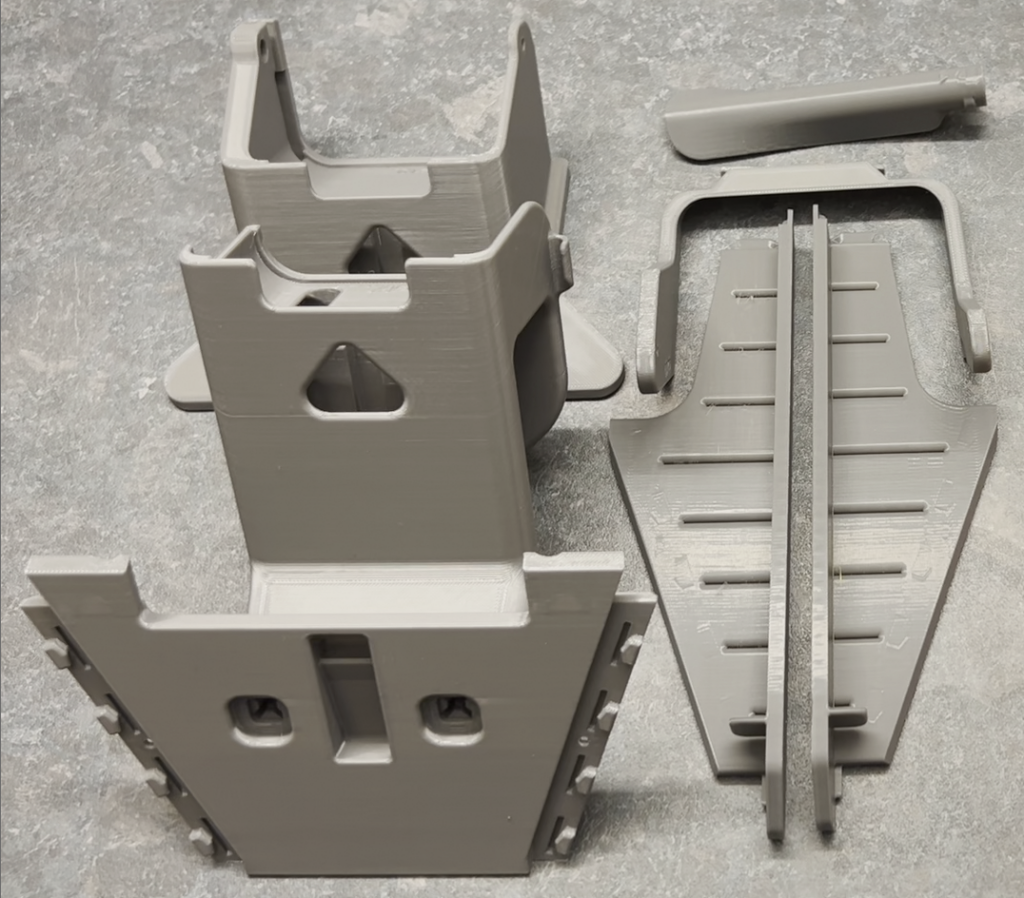
You can print this nine housing parts directly on your A1 mini which will use one plate for a PETG part and 3 plates for PLA. When you print it on a larger printer (A1/P1/X1), all PLA parts can possibly fit onto one plate. It is recommended to use regular PLA and PETG (of any brand) with 0.4mm nozzle. Approximately 350g of filament will be needed when printing with original profile. You can also change the printing settings to speed up the print or make it more robust if you like.
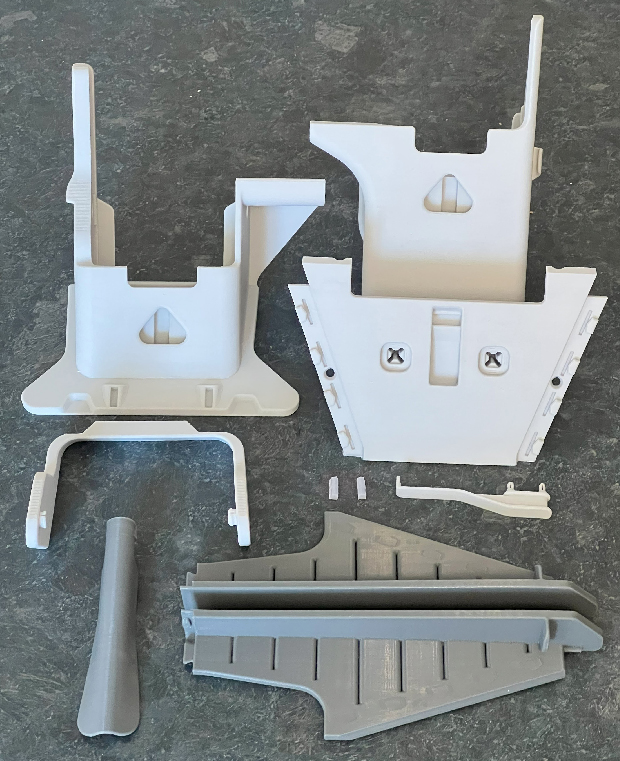
This is an improved version 2 of the housing parts. Guidance for legacy v1 parts can be found here…
Follow the link below to see the guidance for assembling swapmod using legacy parts.
https://swap-systems.com/a1m-kit-guide-v2-legacy-housing/
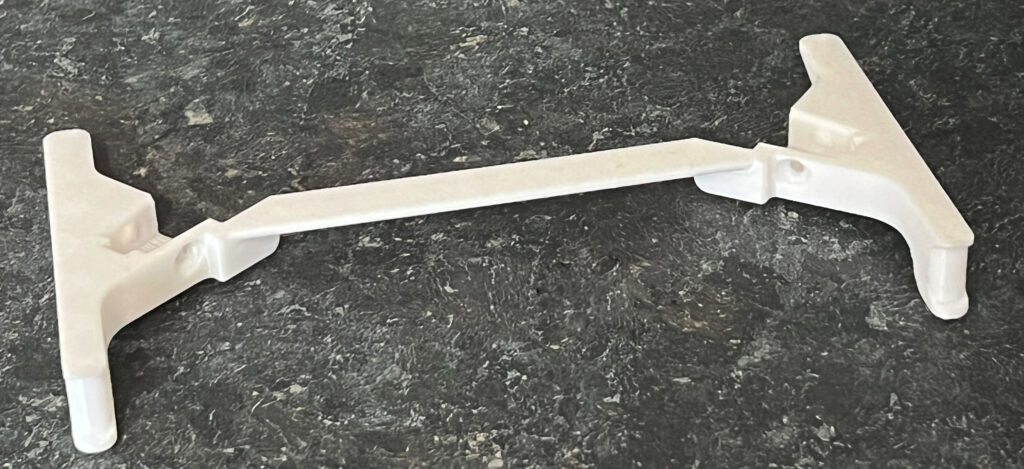
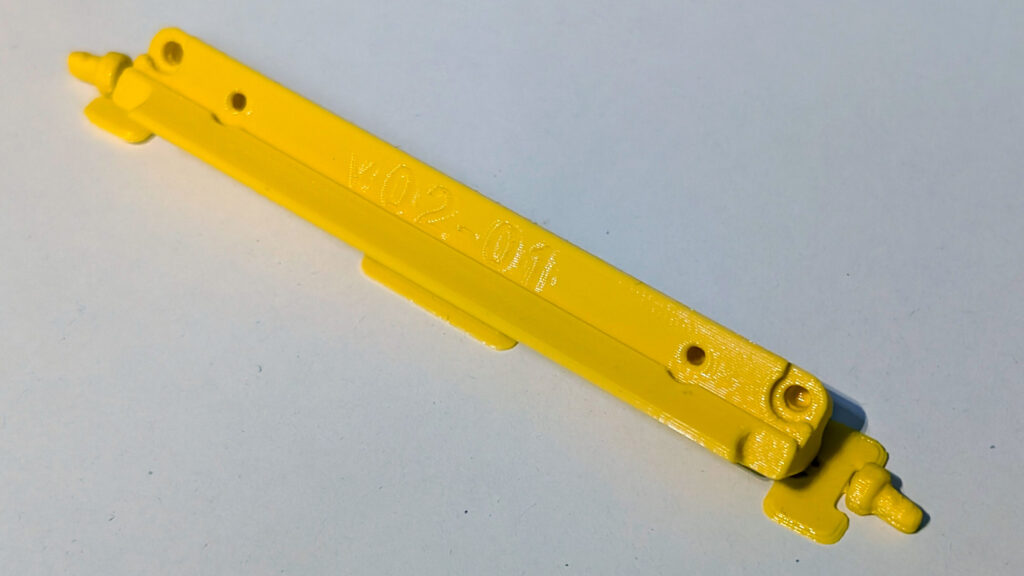
Print this plate hook in needed quantity using a regular PETG. Approximately 11g of filament will be needed.
After all parts contained in the files where printed and exempt from brim (if used) you can proceed with the assembly. Make sure none of these parts are warped or affected by stringing.
Step 2: Assembling swapmod A1M
Please check your Kit and make sure none of the parts which should be provided within a kit are missed. Some Kit parts might be updated over time so their appearance can be slightly different. To assemble the kit you would need a 2mm (5/64″) hex key (you can find one in your BambuLab A1 Mini tool-box) and a regular Phillips screwdriver.
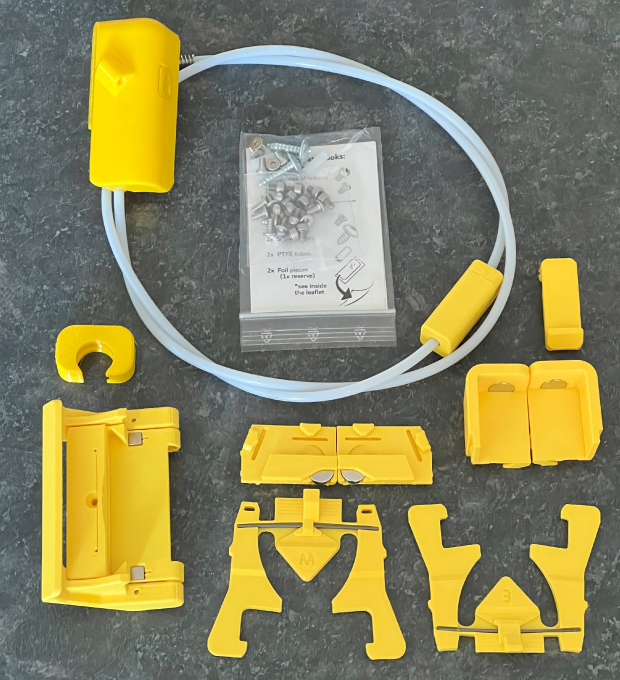
Make sure all entire support is removed and all parts fits well together without applying to much force. Also while fastening the screws you should not apply to much force in order to not accidentally break the threads.
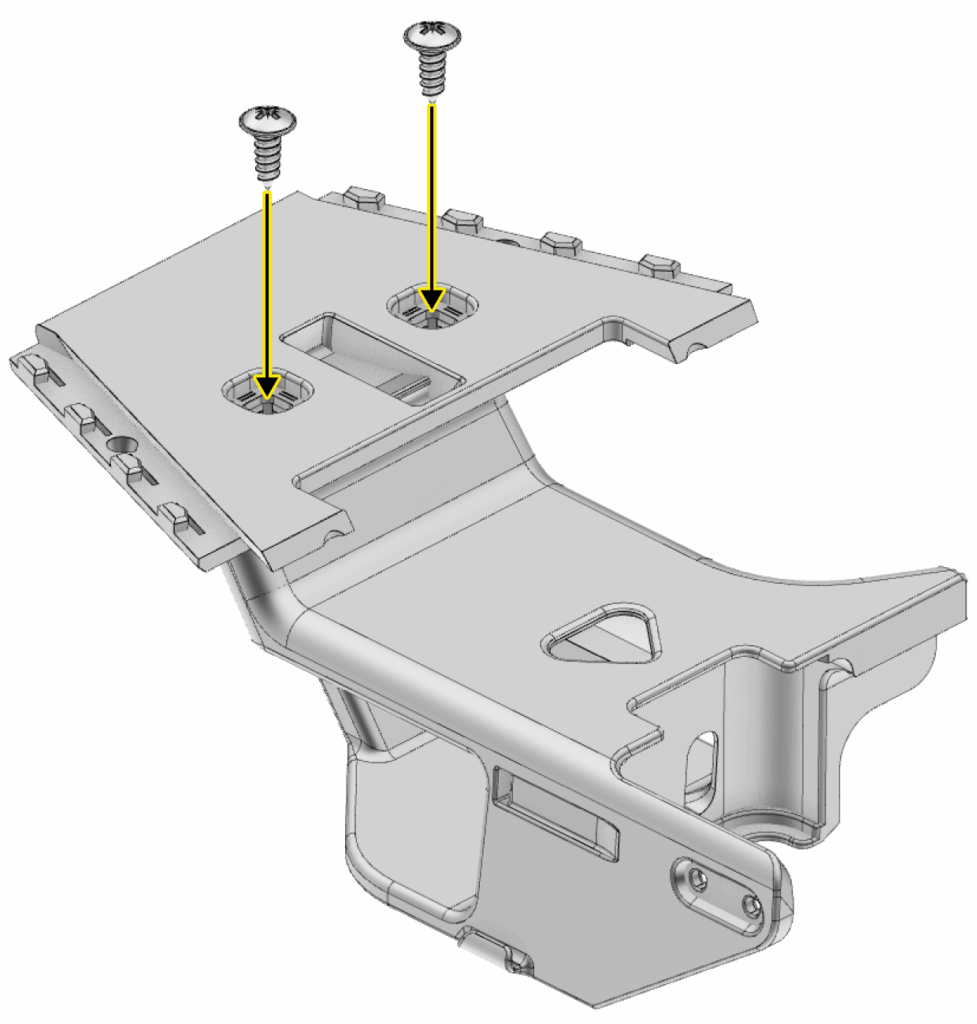
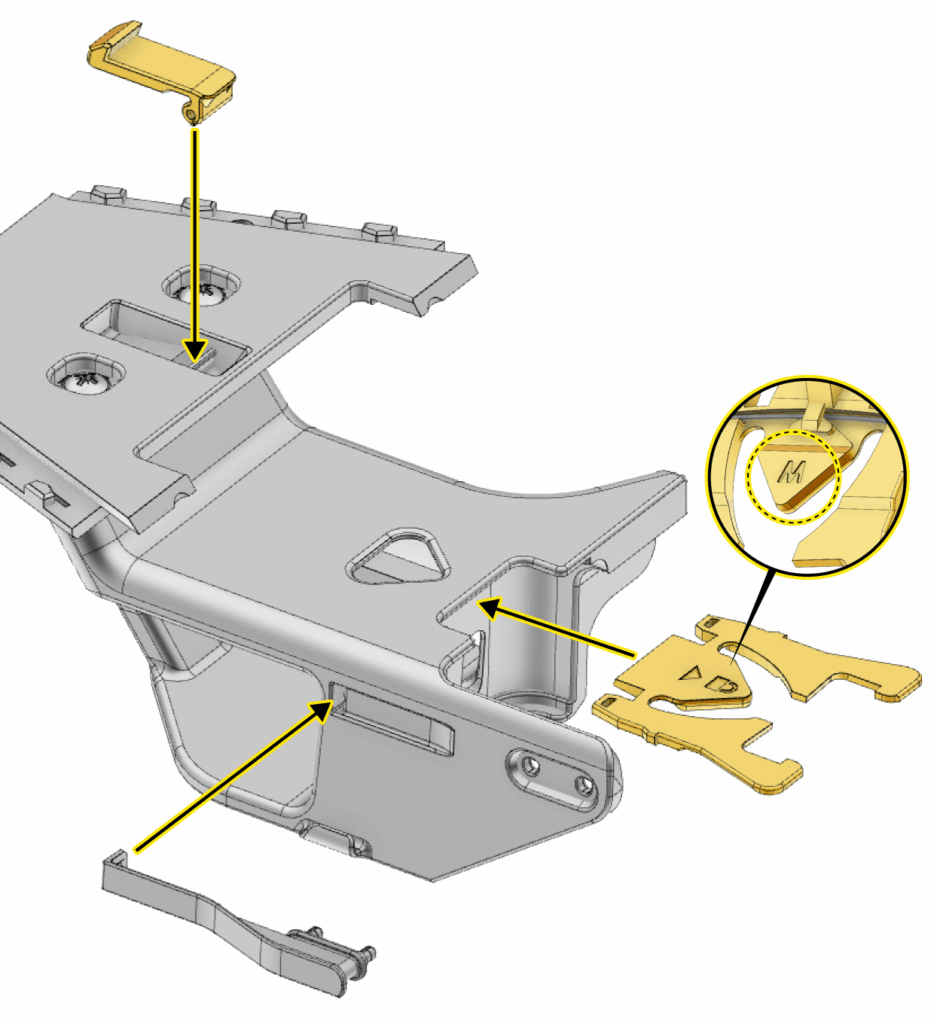
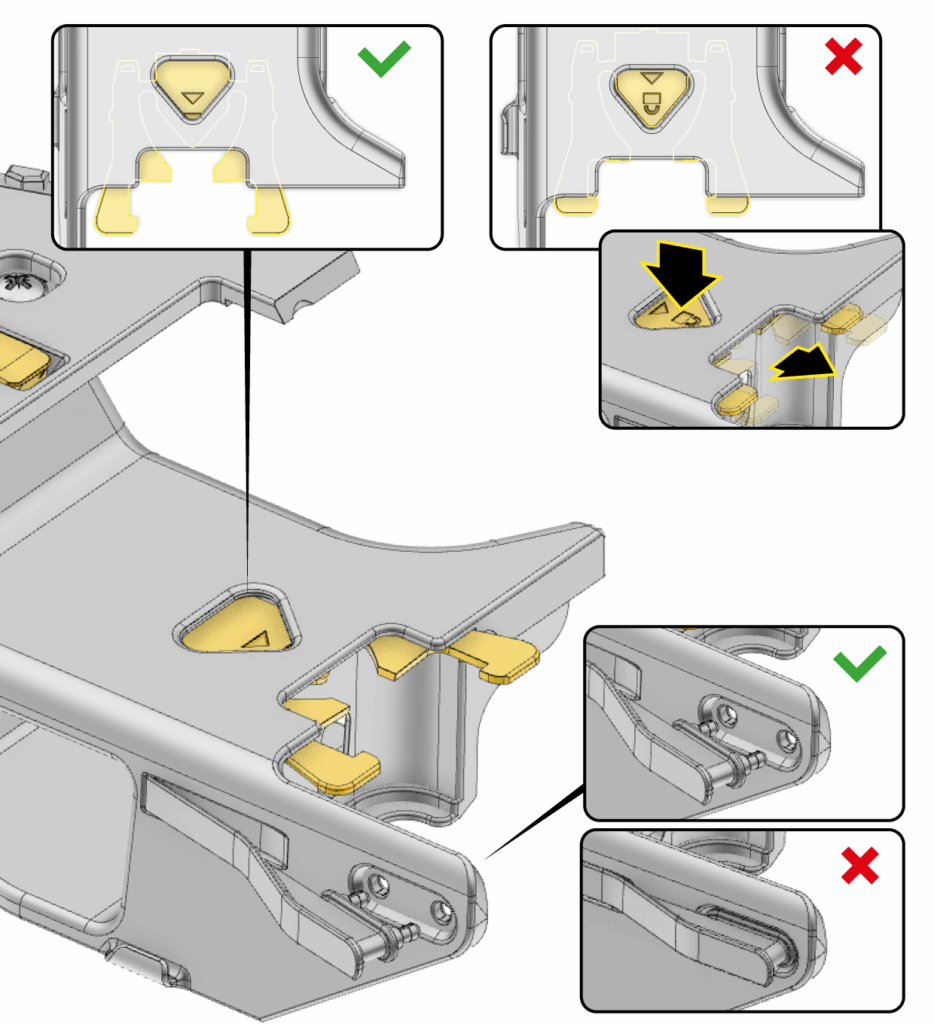
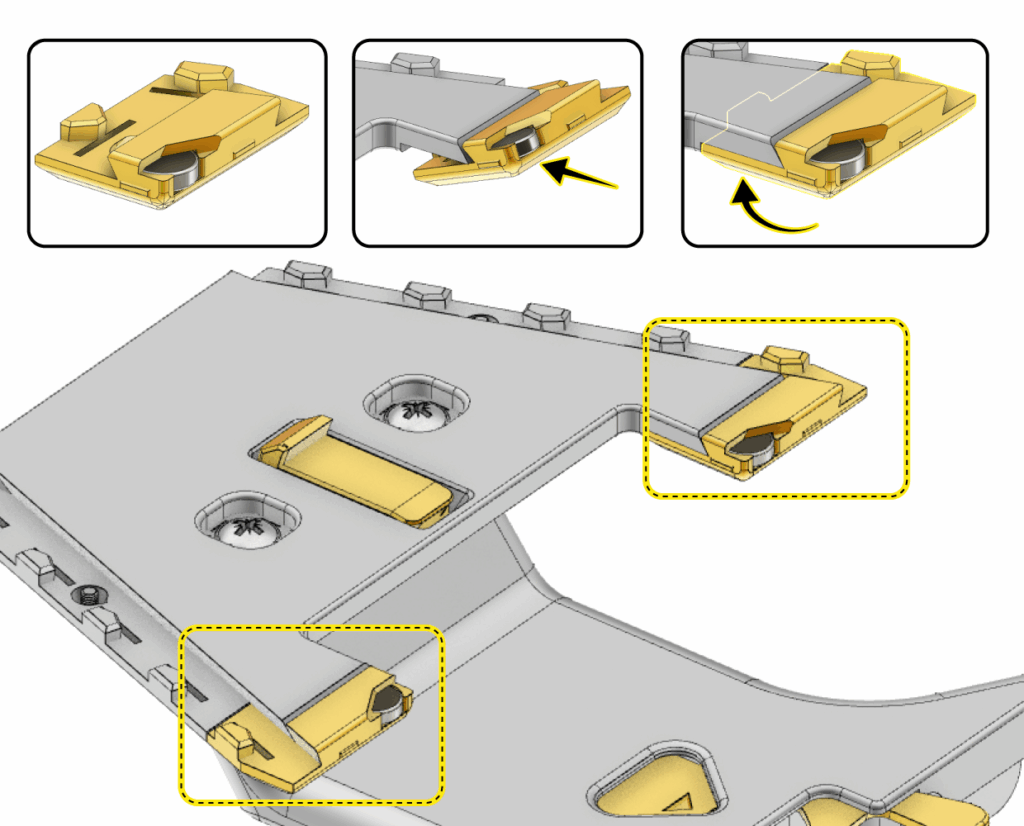
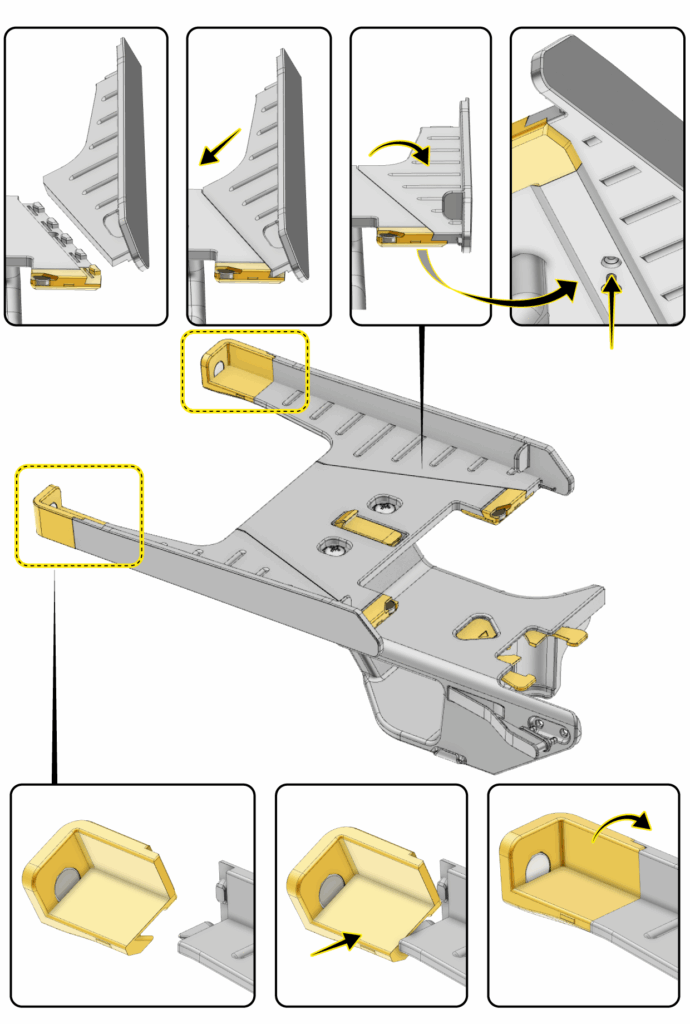
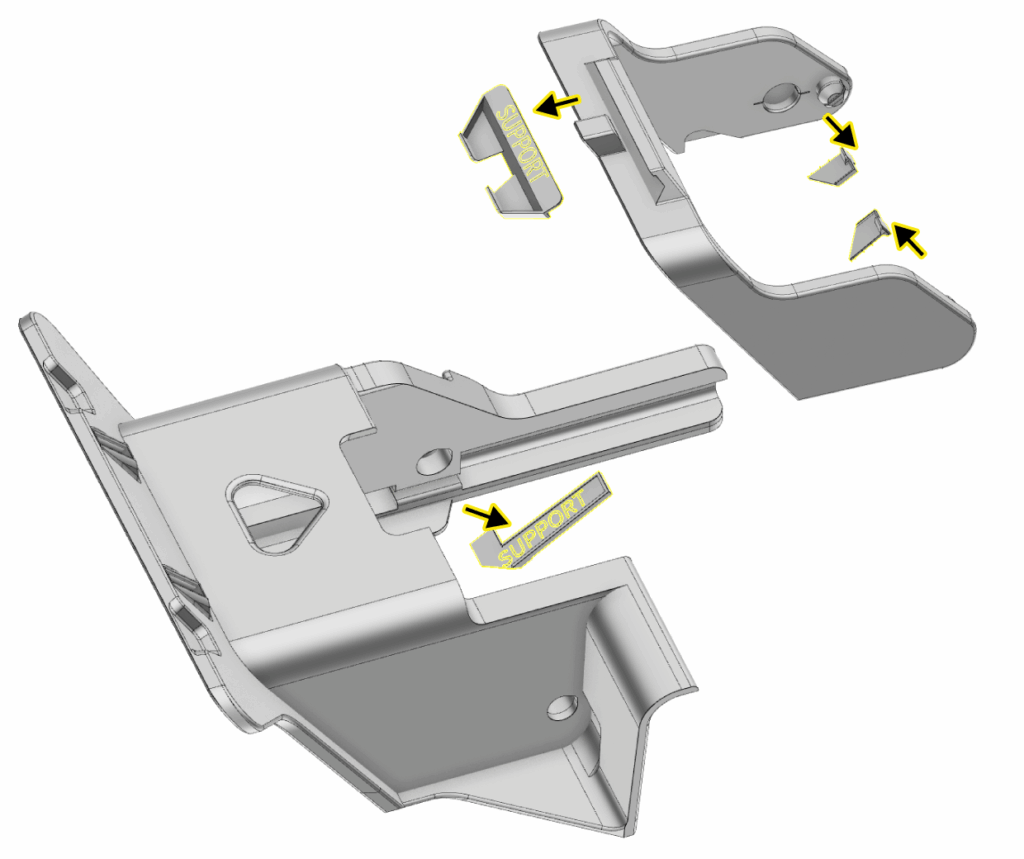
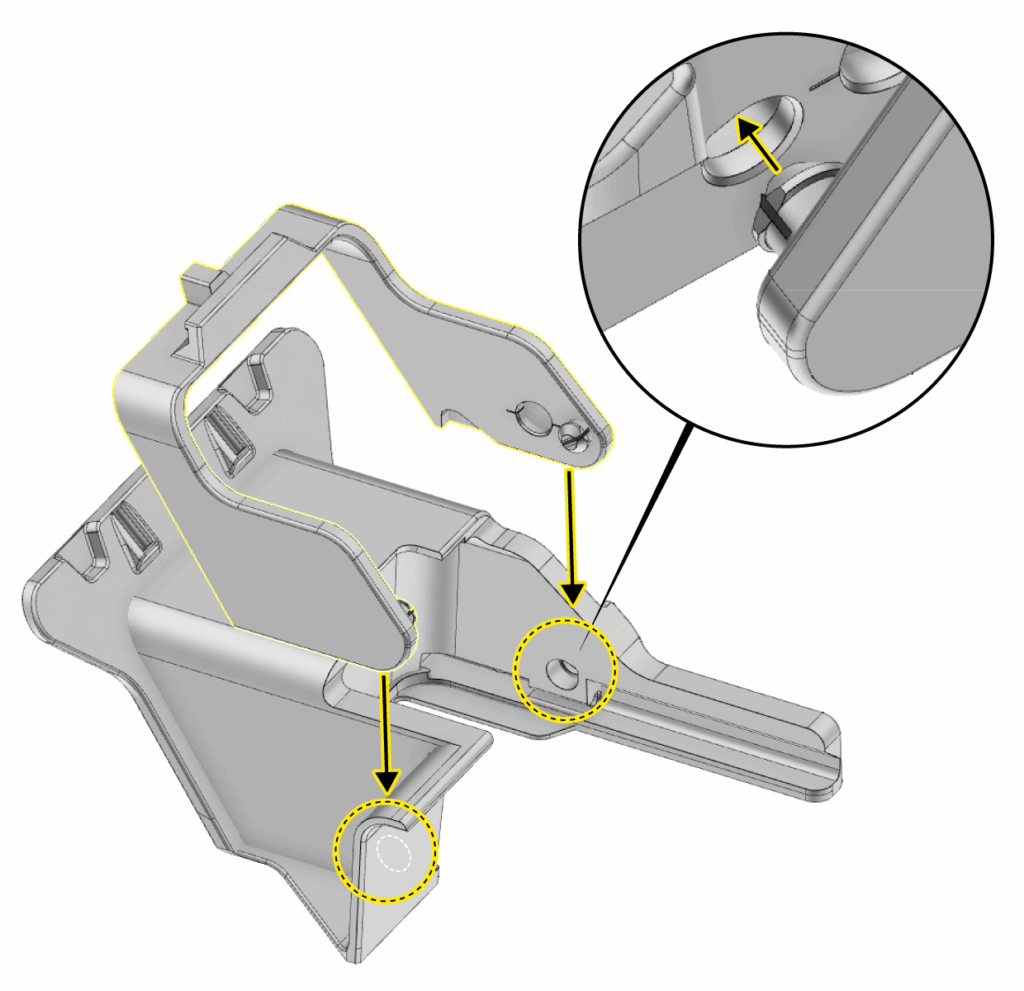
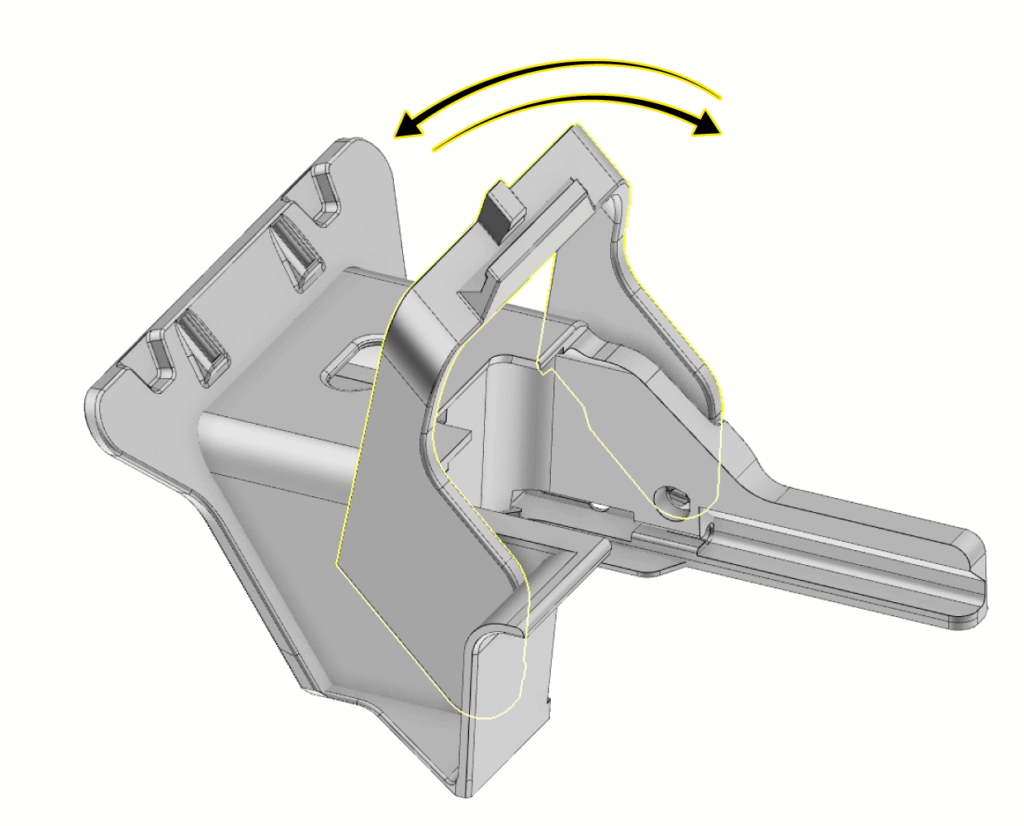
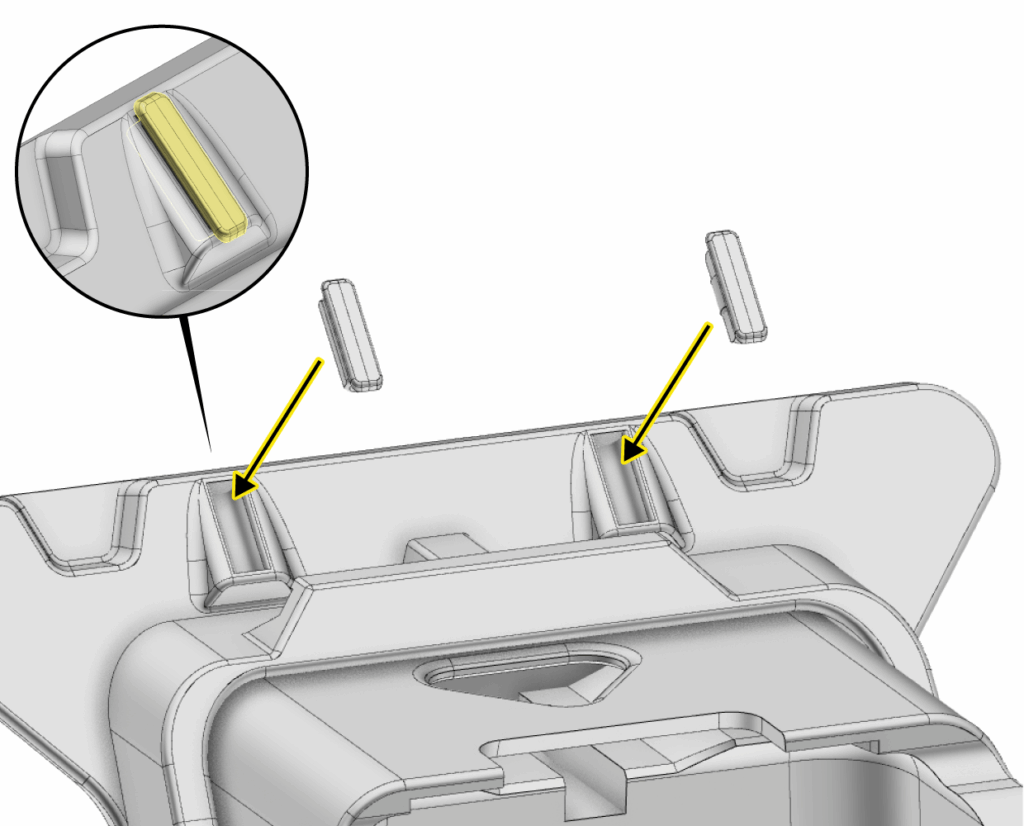
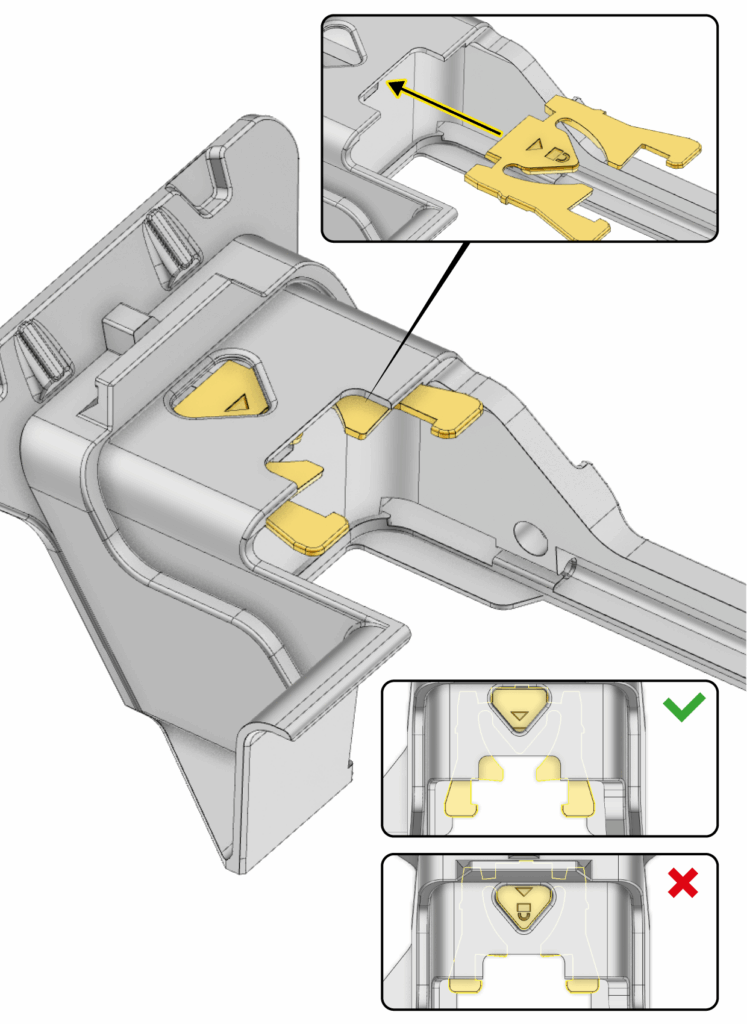
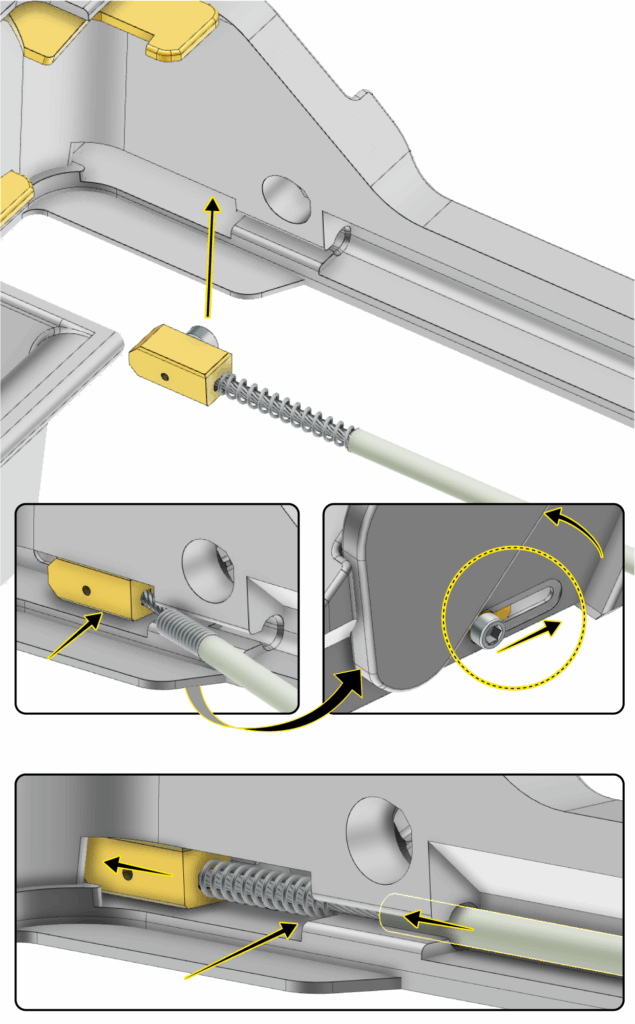
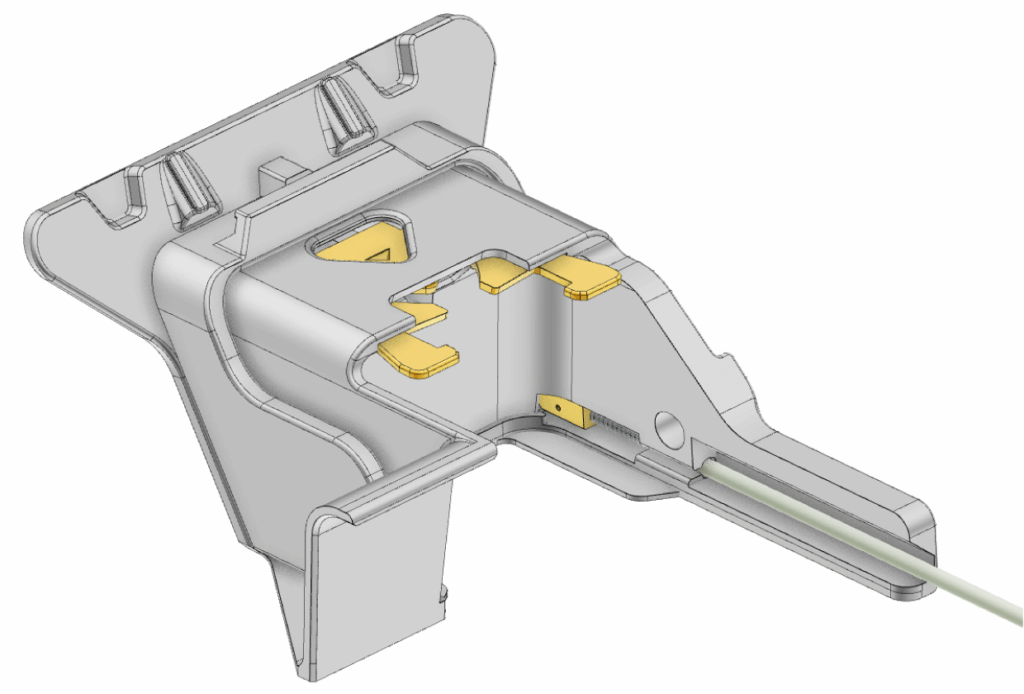
Now when you complete with the assembly you can go on with the next guidance step which shows how prepare your build-plates, attach swapmod to your printer, perform a self-test and start using the system.
Step 3: Preparing build plates
In this step you will learn how assemble the hook and attach it to the build plate.
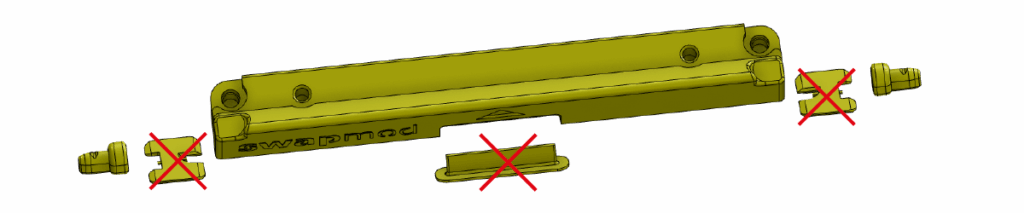
Start with removing the support and brim parts from the hook and detach the two alignment-plug.
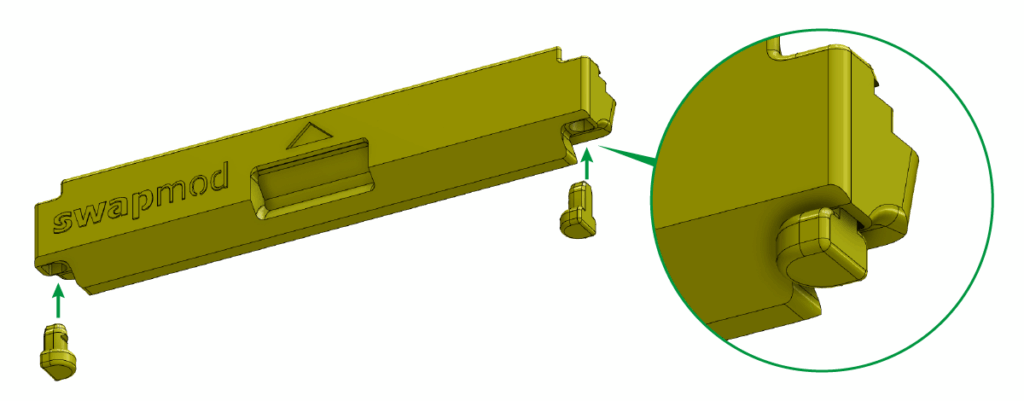
These alignment-plugs needs to be inserted into the corresponding holes located on the bottom sides for the hook. The flat side of the plugs should face outwards.
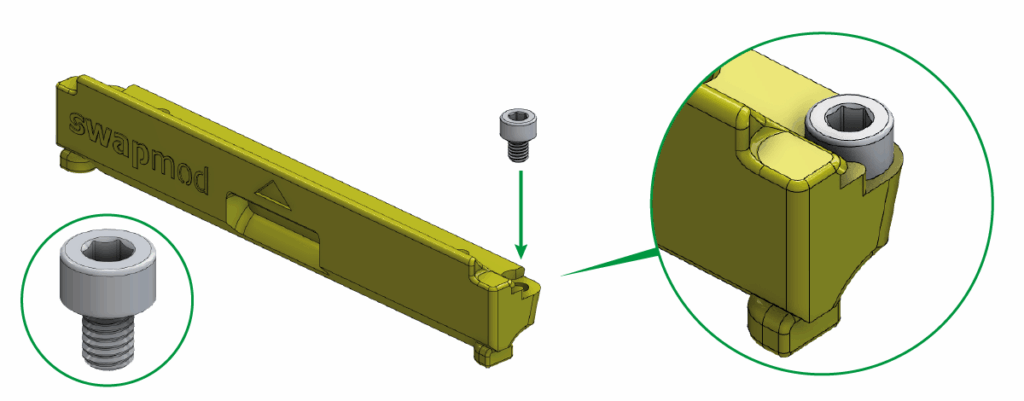
Now take the cylinder head screw and screw it into one outer hole on the top side of the hoock using 2.5mm allen key. Plese do it only on ONE side, left or rihgt, depending on which side of your plate you plan to use.
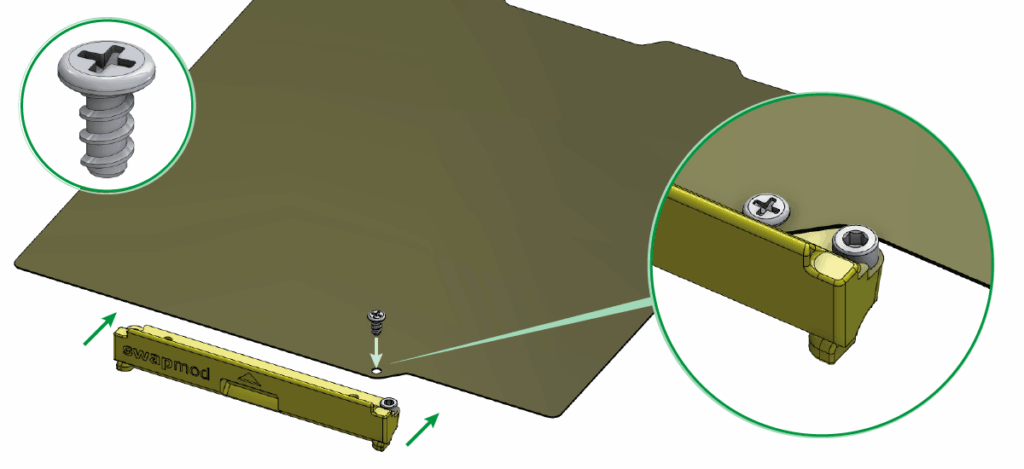
Attach the hook to the front edge of your panel using the self-tapping Phillips flat head screw.
If you don’t have such screws in your kit, read here…
If you don’t have such screws in your kit, than you have probably the older version of the kit where M2 screws and nuts were used (see picture below).
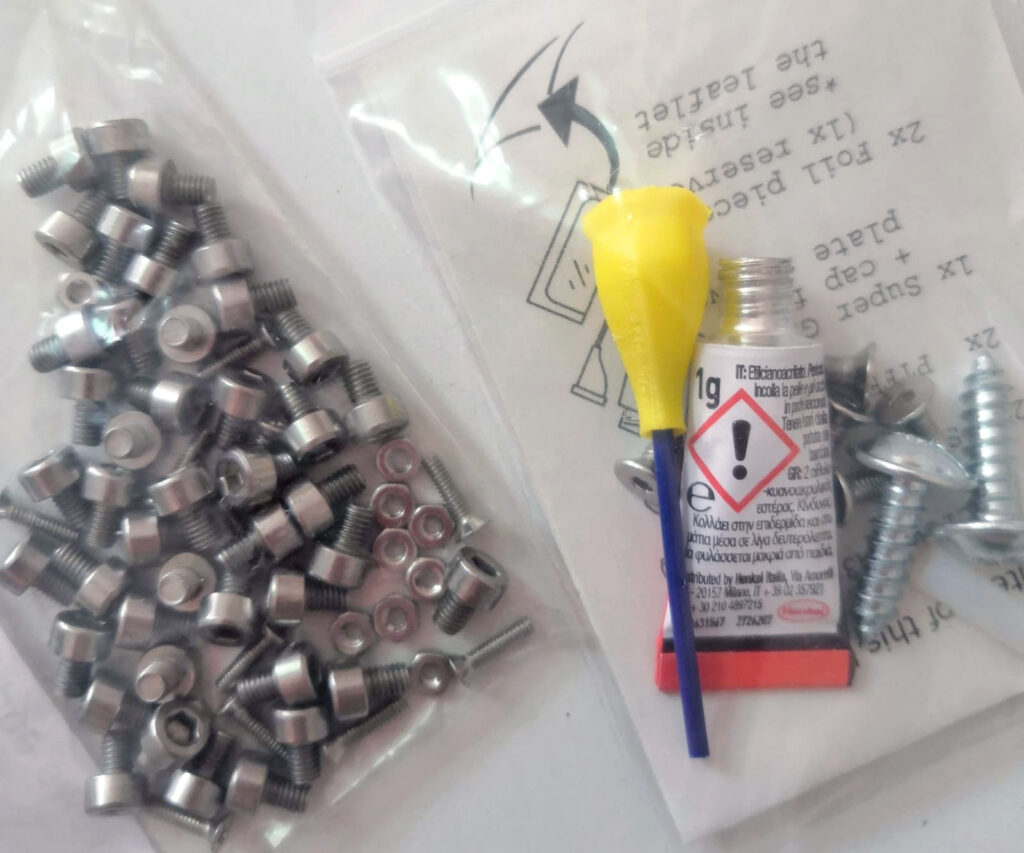
In this case please folow this guide or order some matching screws from BambuLab’s MakerSupply store (here or here) or obtain similar screws from alternative sources.
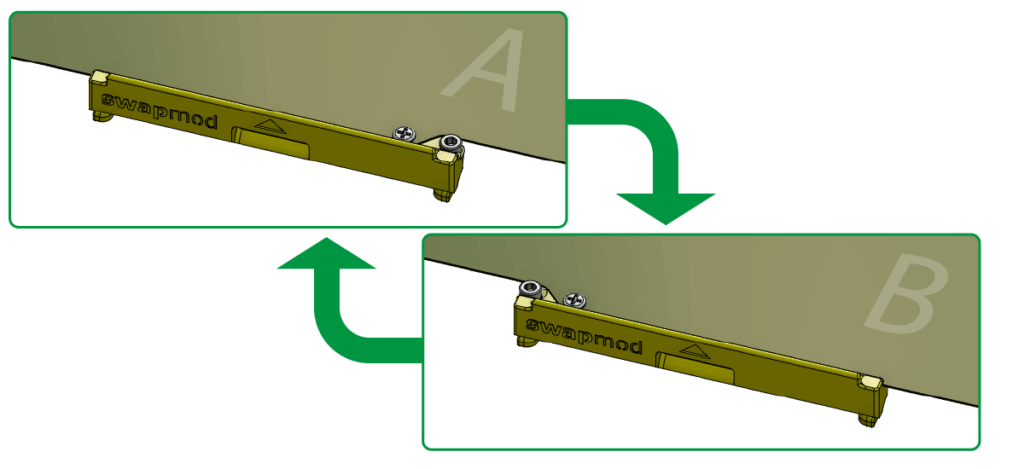
To use the other side of the plate, you need to unscrew the two screws and insert them on the other side of the hook.
Step 4: Installing swapmod
In this step you will learn how to install swapmod on your BambuLab A1 Mini printer.
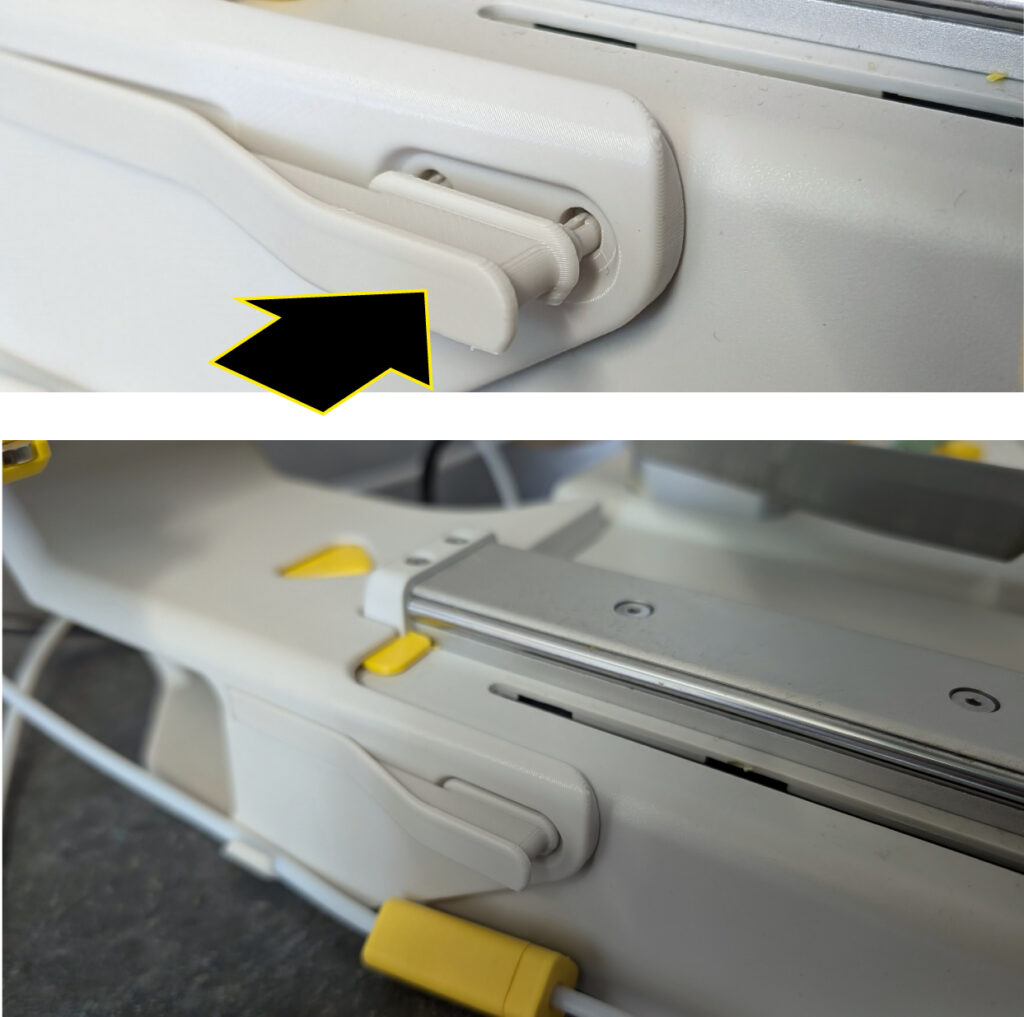
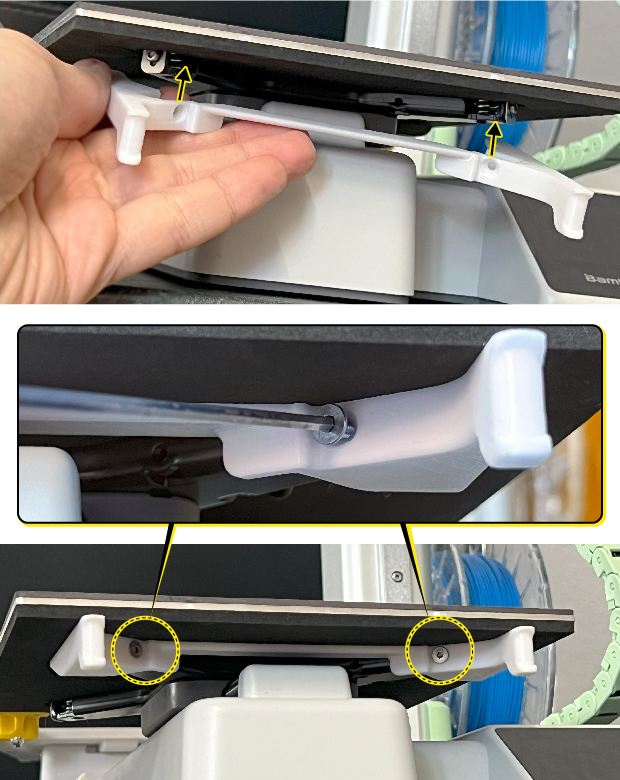
Please note: This video is made for the legacy housing version of swapmod, however all steps still applicable to the new design. The only difference is that you will need to to an extra steps in order to secure the magazine and attach the plate pusher to the front of the heat-bed, like shown on the pictures below.
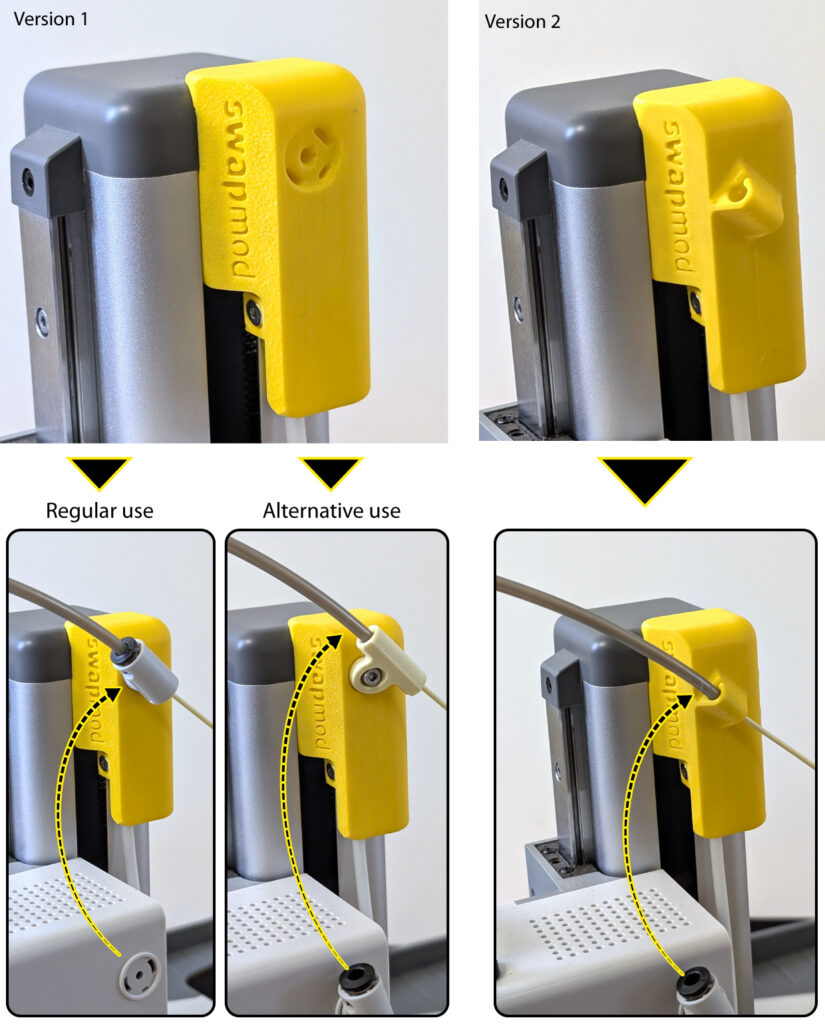
To prevent your filament from tangling while using Swapmod, it is necessary to attach the PTFE tube to a fixed point (e.g. the trigger mount). There are two versions of the trigger mount:
Version 1 is equipped with a slot to attach original tube holder (regular use). If the tube does not hold firmly or the connection wears out over time, an alternative tube holder can be used (download here).
Version 2 comes with an integrated tube holder.
Step 5: Performing self-test
In this step you will learn how to run a self-test of swapmod. It is recommended that this test is carried out after the printer is in place in its actual work area.
If you notice that loaded plates are always slightly rotated (see picture below), this may be due to the misalignment of the magazine.
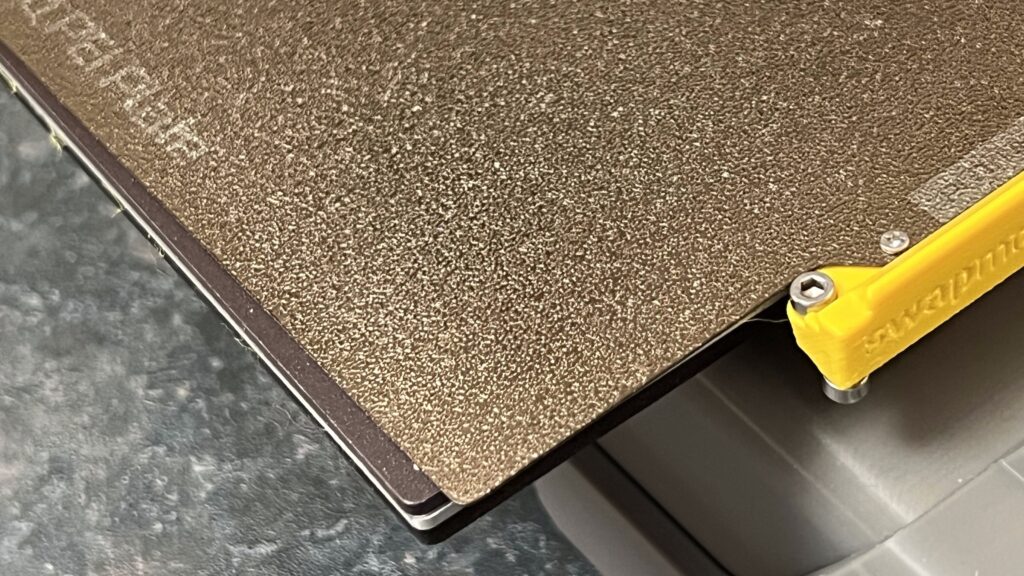
In this case, you can counteract this by slightly adjusting the magazine’s orientation, as shown in the previous chapter.
If you have issues to open the self-test file in your slicer and send to you printer, please copy it to your SD card manually. In the next chapter you will find some workarounds for such problems.
Step 6: Using swaplist.app
In this step you will learn how to use swaplist.app to print multi plate projects.
Do NOT use your browser’s auto-translation function.
This will lead to malfunctions of swaplist.app.
When you notice that the files converted by swaplist.app cause errors when reopening in slicer, you have few alternative ways how to send these to your printer. Especially when using MacOS, OrcaSlicer or processing big files (with many plates or complex geometry) this could be helpful.
- Setup and use FTP connection to send your files
- Install and use BambuConnect to send your files
- Install and setup Bambu Farm Manager
- or simply copy files manually to your SD (which is possible but not recommended for frequent use)
- Use some third party printer manager (read also below)
Swaplist alternatives
Swaplist.app is our in-house developed low-tech solution which offers an easy understandable way to start with automated printing. However, depending on certain use-case this might possibly be not the best or most comfortable way for everyone. There are multiple alternatives and other possible ways on how you can use an automation. Please follow this link when you want learn more about possible alternatives like swapnow-file or printing-manager services.
You are almost ready…
Your A1 mini is now equipped with swapmod and is ready for use. Please read the following chapter to learn what must be taken into account when using.
If you encounter any problems during the self-test or when using Swapmod, please refer to the troubleshooting section.