
Guide for swapmod STL edition
Preparation: Download and print
Begin by downloading the project file in your in your personal download area. To access, login is required. Use same email as for your purchase.
Please note that you will also be able to download new updates and revisions of this file in the future, and update your swapmod if needed.
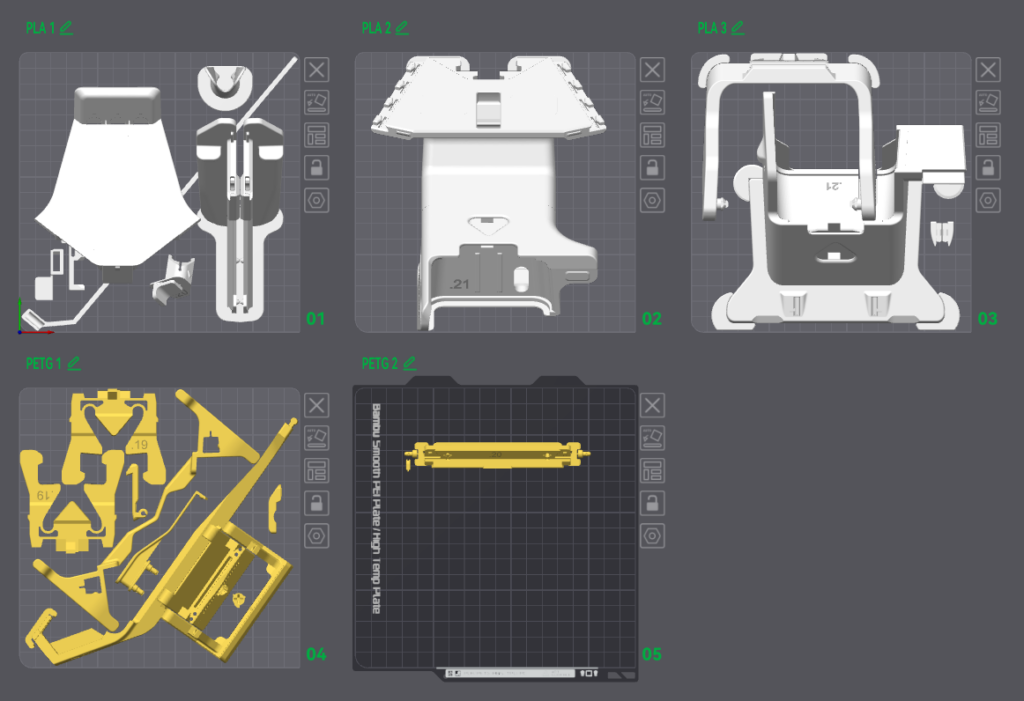
The file can be opened in Bambu Studio or Orca Slicer. While slicing, ignore the “floating regions” warnings, as the parts are using prebuilt support. You will need appr. 450g of PLA and 100g of PETG. It is recommended to use regular PLA and PETG (of any brand) with 0.4mm nozzle. We also recommend to avoid using Silk, Mate, CF or GF filaments as this can cause tolerance issues. For same reason print all parts using PETG is also not recommended. You can change the printing settings to speed up the print or make it more robust, but be aware of possible tolerance issues here, too.
All parts can be printed on A1 mini which will result in three plates of PLA parts and two plates of PETG parts. The plate hook on the last plate needs to be duplicated corresponding to number of plates you would like to use.
After all parts contained in the file where printed and exempt from brim and support you can proceed with the assembly. Make sure none of these parts are warped or affected by stringing.
Step 1: Assembling
To assemble the parts you would need:
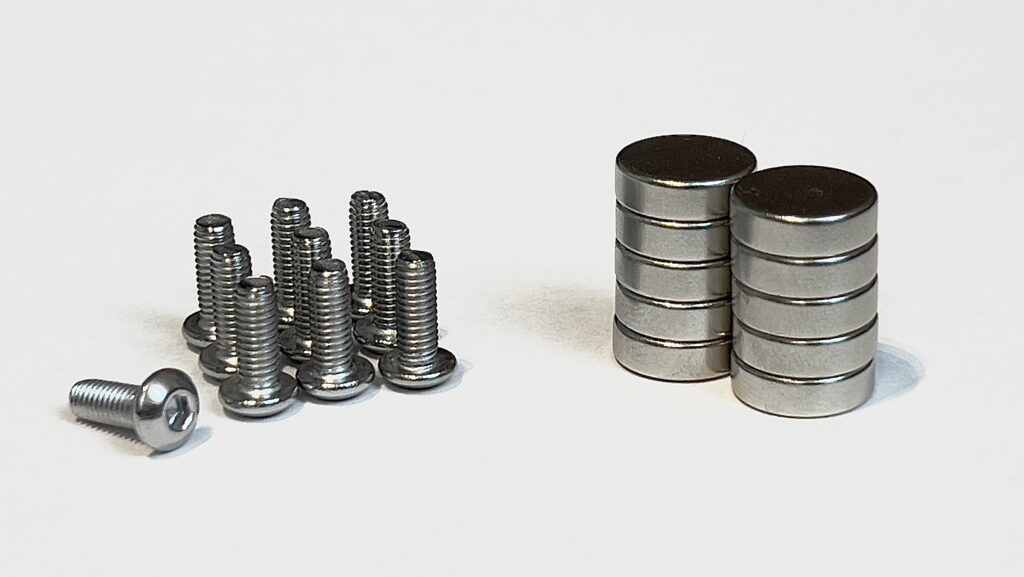
- 10 Round magnets ( diameter: 10mm / high: 3mm)
- 5 Button head screws (ISO 7380-1 / thread: M3 / length: 8mm)
- + 1 additional screw for each build-plate
🛒Where to buy?
You can buy these standard parts from your local hardware supplier. These are affordable and widely available.
If you are located in Germany or at least in one of it’s neighbor countries, you can order a set directly here in our shop.
If you prefer to order it from in BambuLab MakerSulpply store, here are the direct links:
🔧You would also need a 2mm (5/64″) hex key (you can find one in your BambuLab A1 Mini tool-box) and a regular Phillips screwdriver (needed in next chapter) .
▶️Have issues playing the video?
Step 2: Preparing build plates
In this step you will learn how to assemble the hook and attach it to the build plate. Make sure to remove the support and brim parts from the hook and detach the two alignment-plug.
▶️Have issues playing the video?
Here you will find additional resources mentioned in the video.
- ⬇️ Coating for SuperTack build-plates (MakerWorld)
- ⬇️ Hook for Cryogrip-Glacier (MakerWorld)
- ⬇️ Hook for Cryogrip-Frostbite (MakerWorld)*
*Please note, that the Frostbite hook requires an additional M2 screw & nut.
Step 3: Installing
In this step you will learn how to install swapmod on your BambuLab A1 Mini printer.
▶️Have issues playing the video?
Step 4: Self-test
In this step you will learn how to run a self-test of swapmod “STL edition”. It is recommended that this test is carried out after the printer is in place in its actual work area.
▶️Have issues playing the video?
🚨Have issues with the self-test?
If you notice that loaded plates are always slightly rotated (see picture below), this may be due to the misalignment of the magazine.
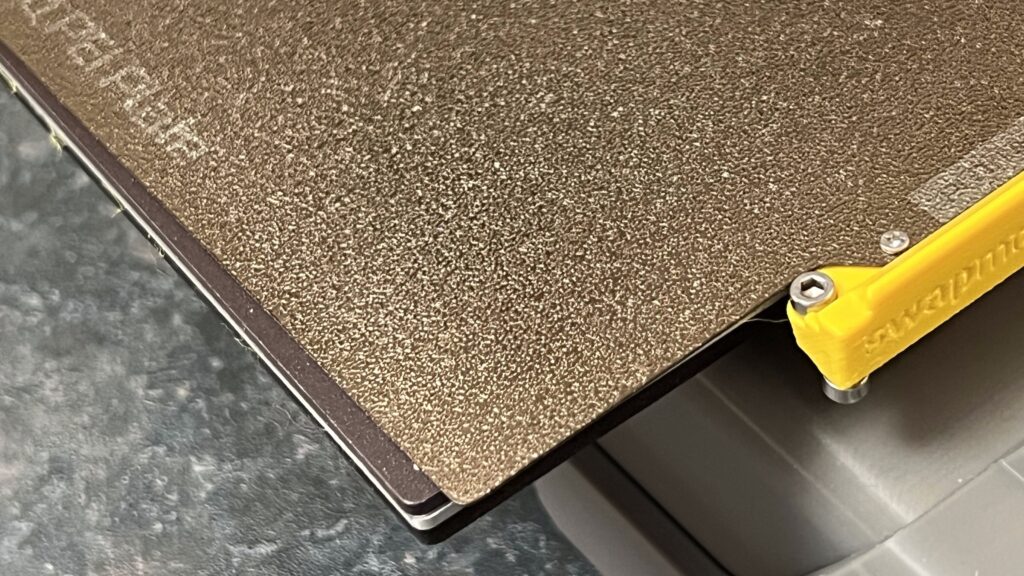
In this case, you can counteract this by slightly adjusting the magazine’s orientation.
If you have issues to open the self-test file in your slicer and send to you printer, please copy it to your SD card manually. In the next chapter you will find some workarounds for such problems.
Step 5: Swaplist app
In this step you will learn how to use swaplist app to convert your printing files into a printing queue and easily print multi-plate projects.
▶️Have issues playing the video?
💾 Can I download this app and use offline?
The Swaplist app for Swapmod STL Edition is not available for offline use. As all original files are shared via a download, we need to keep some control over it’s distribution. However, the app will remain free for customers who have purchased SwapMod files. There will be no subscription-based plan, and after the product lifecycle ends (when we stop selling it), the app will be made publicly available without a login and will be downloadable.
Please note, that swaplist app is only a converter tool, which turns your single-plate files into a multi-plate queue file. Once converted you can use all converted files offline as often as you need. If a 100% offline application is a must have for your business or particular use-case, please consider purchasing swapmod Kit, which comes already with the offline use app.
🚨Have issues reopening file in slicer?
When you notice that the files converted by swaplist.app cause errors when reopening in slicer, try to open your slicer first (without loading file), then switch to preview tab and drag and drop your converted file there.
If this doesn’t work, you have few alternative ways how to send these to your printer even without slicer. Especially when using MacOS, OrcaSlicer or processing big files (with many plates or complex geometry) this could be helpful.
- Setup and use FTP connection to send your files
- Install and use BambuConnect to send your files
- Install and setup Bambu Farm Manager
- or simply copy files manually to your SD (which is possible but not recommended for frequent use)
- Use some third party printer manager (read also below)
🚨Have issues converting large files?
⚠️Note: It is recommended to use Firefox browser when you plan to convert large project files. Firefox has higher limits for memory usage (compared to other browsers like Safari or Chrome for instance).
Swaplist app is our in-house developed low-tech solution which offers an easy understandable way to start with automated printing. However, depending on certain use-case this might possibly be not the best or most comfortable way for everyone. There are multiple alternatives and other possible ways on how you can use an automation. Please follow this link to learn more about possible alternatives like swapnow-file or printing-management tools and services.
Step 6. Using swapmod
Your system is now ready to use. Before you start, please read the following chapter, which will help you set up a workspace for your swapmod system and give you some useful advices.
Troubleshooting and community
If you experience issues while assembling, installing or operating swapmod, please consider joining our swapmod discord server as this is the only way to get help from our support moderators or community members. Just click on the button below to get your invitation. This is also the only channel for now where you can be notified about design updates and announcements.

Avoiding jams
You should avoid plate jams at the ejecting unit. The safest way to operate any plate-changing automation is to use a collecting box placed below the level of your printer. This allows ejected plates to easily fall inside the box and out of the way while the next plate is being ejected.
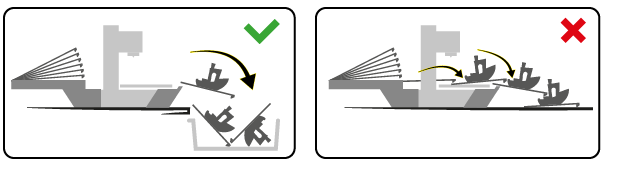
An alternative would be using a rail system add on.
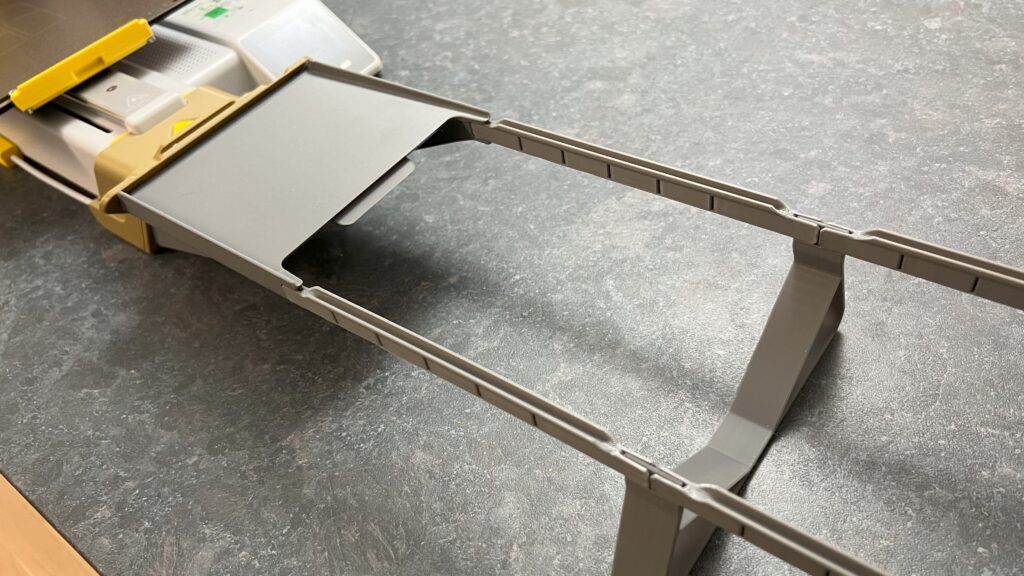
What if you have to little space for a box or rails?..
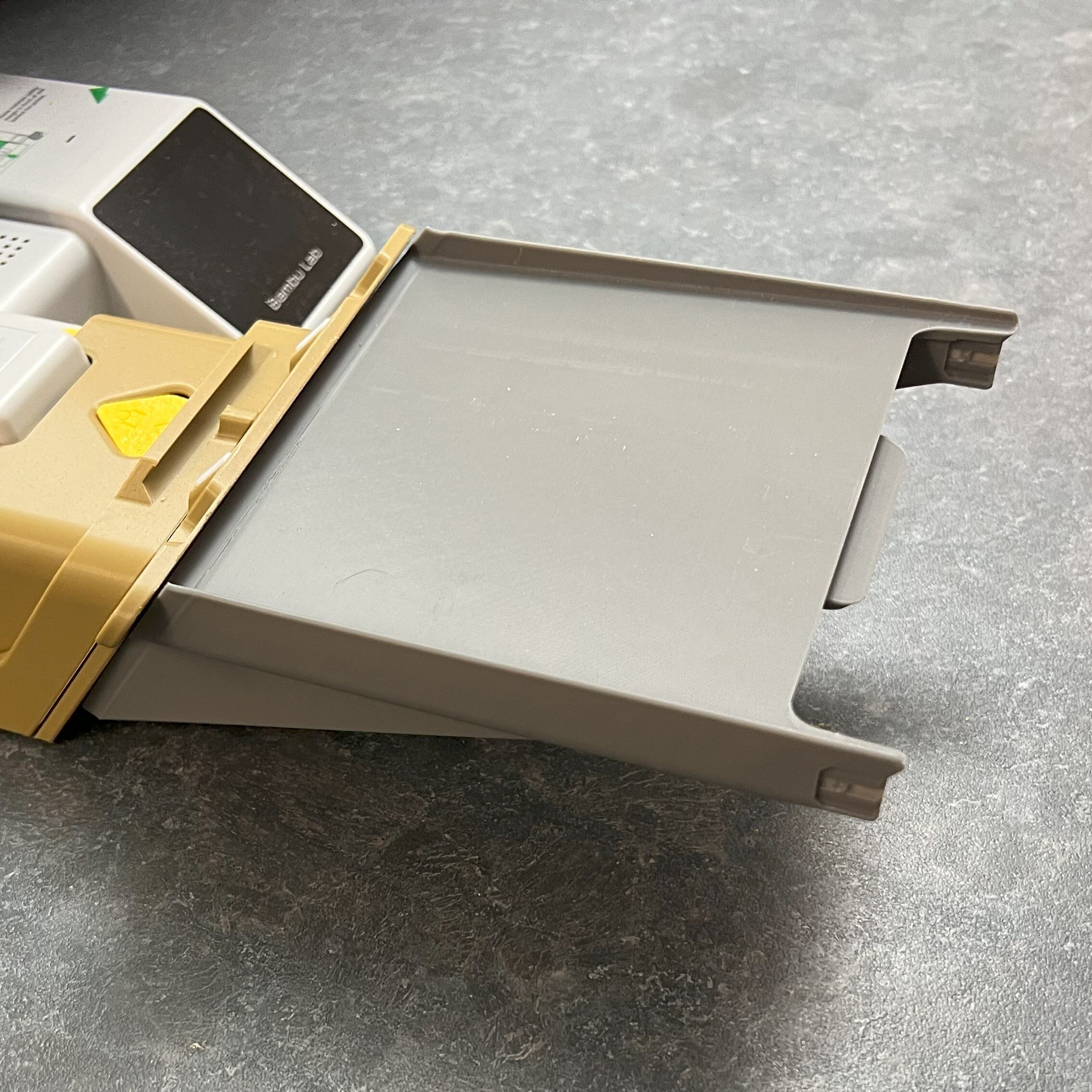
If you are operating within a limited area and neither collecting box nor a rail system are suitable options, please install at least a ramp extender (which is a part of rail system add-on).
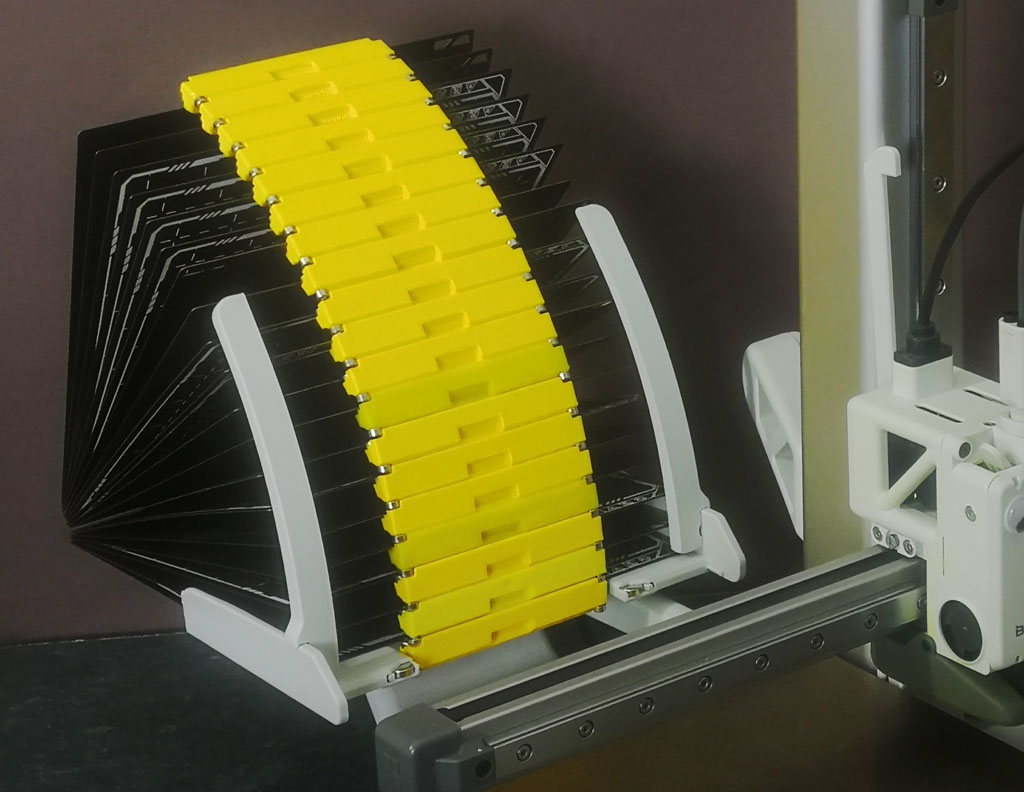
Amount of plates in the magazine
In regular case the maximum recommended plates amount in the unmodified magazine is 8, but if you would like to use more, please add this extenders to your magazine.
More extensions and mods
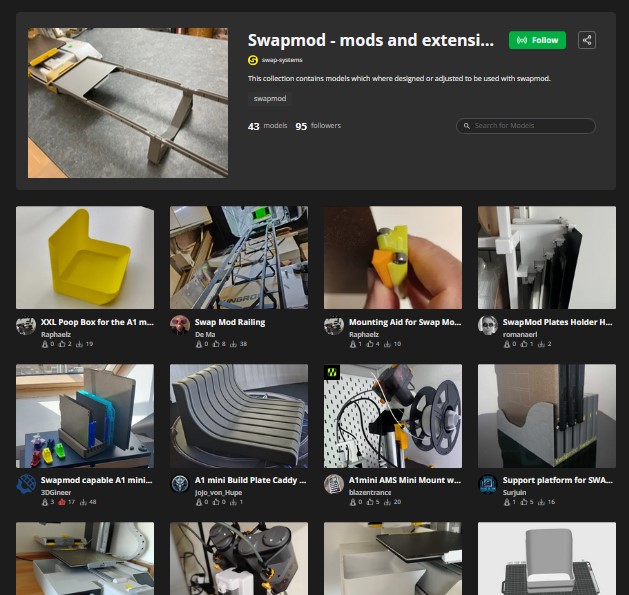
There is an official swapmod collection on makerworld where you will find different models which can be used with swapmod. For instance you can extend the ejector unit with a ramp, so the last ejected plate will remain on it or even use rails if your prefer treat your ejected plates in the most secure and gentle way. Some of these designs are designed for swapmod Kit edition, but most models are also compatible with the STL edition.
Updates and changelog
As the SwapMod design is updated over time, you can find an overview in our Swapmod A1m STL – changelog. You don’t need to update it each time a new version is released, as the saying goes, “Never change a running system”. However, it may be helpful to check the changelog periodically in case an update solves an issue you have experienced. Latest version of the files for your swapmod can be downloaded in your personal download area.